

🔐 Securing Your Dataverse Plugins: The Complete Guide to Code Signing
Today we’ll unpack one of the most overlooked but critical steps in plugin development: code signing. Whether you’re testing locally with a self-signed certificate or preparing for production with a trusted authority, this guide walks you through both paths, so your plugins stay secure and compliant across every environment.
Update 12/10/2025 - I went ahead and updated the Microsoft Official documentation with some of this guidance. You can read here.
🧭 What You’ll Learn
Creating and managing your signing certificate
Generating the correct subject identifier
Packaging and signing your plugins
Registering everything cleanly with Dataverse
A bonus recommendation on automating certificate signing
💡 Tip: Treat your signing certificate like a secure document. Keep it private, protected, and backed up safely.
1️⃣ Creating Your Digital Certificate
Every plugin needs a verifiable identity. The certificate is your plugin’s fingerprint.
Here’s a sample PowerShell script to create a self-signed certificate for development and testing:
Official Example: https://learn.microsoft.com/en-us/powershell/module/pki/new-selfsignedcertificate?view=windowsserver2025-ps#example-3.
$params = @{
    Type = ‘Custom’
    Subject = ‘E=yourcompany@domain.com,CN=Your Company’
    TextExtension = @(
        ‘2.5.29.37={text}1.3.6.1.5.5.7.3.4’,
        ‘2.5.29.17={text}email=administrator@yourcompany.com’ )
    KeyAlgorithm = ‘RSA’
    KeyLength = 2048
    SmimeCapabilities = $true
    CertStoreLocation = ‘Cert:\CurrentUser\My’
}
New-SelfSignedCertificate @params
⚠️ Always use a strong password. Save this certificate in a secure location like Azure Key Vault or a secure secrets store.
🏢 For Production Environments
The PowerShell script above works well for development and testing scenarios. However, for production deployments, it’s important to use a certificate issued by a trusted and managed certificate authority rather than relying on a self-signed certificate.
2️⃣ Building the Subject Identifier (The Tricky Part)
These value ties your certificate, tenant, and environment together. You’ll need:
Azure Tenant ID
Dataverse Environment ID
Certificate Subject
Here’s a reusable PowerShell helper function:
function Get-SubjectIdentifier {
    param(
        [Parameter(Mandatory=$true)][string]$TenantId,
        [Parameter(Mandatory=$true)][string]$EnvironmentId,
        [Parameter(Mandatory=$true)][string]$Subject
    )

    $bytes = [Guid]::Parse($TenantId).ToByteArray()
    $encodedTenant = [Convert]::ToBase64String($bytes).TrimEnd(’=’).Replace(’+’,’-’).Replace(’/’,’_’)
    $encodedSubject = [System.Web.HttpUtility]::UrlEncode($Subject)

    return “/eid1/c/pub/t/$encodedTenant/a/qzXoWDkuqUa3l6zM5mM0Rw/n/plugin/e/$EnvironmentId/i/$encodedSubject/s/$encodedSubject”
}
3️⃣ Packaging and Signing
Now, time to seal the deal.
Package your plugin:
nuget spec YourPlugin.dll
nuget pack YourPlugin.nuspec
Sign it with your certificate:
nuget sign YourPlugin.nupkg `
    -CertificatePath plugin-signing.pfx `
    -CertificatePassword “YourSecretPassword” `
    -Timestamper http://timestamp.digicert.com
Timestamping ensures your signature remains valid even after your certificate expires.
🔥 If you want to automate your certificate generation and integrate signing into your DevOps or GitHub Actions pipeline, I highly recommend reading Scott Hanselman’s blog on Automatically Signing a Windows EXE with Azure Trusted Signing, dotnet sign, and GitHub Actions.
The same concepts apply directly to Dataverse plugin signing and help you shift from manual PFX handling to a secure, cloud-based signing workflow.
4️⃣ Registering / Update Managed Identity with Dataverse
To understand how to create or update the identity record with the correct attributes, read:
🧩 Goodbye Secrets — Using Managed Identity in Dataverse Plugins. https://blogs.apurvghai.com/p/goodbye-secrets-using-managed-identity
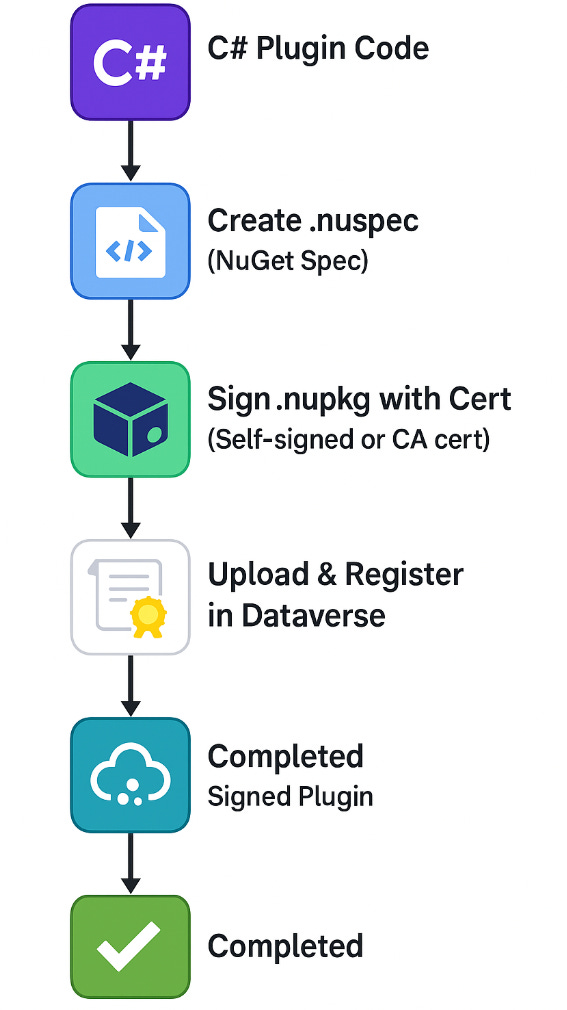
Finally, here’s the flow:
🔍 Troubleshooting Quick Wins
Certificate not recognized
Verify that the subject identifier is encoded correctly.
Make sure the tenant ID was converted using Base64URL (no padding, no “+” or “/”).
Confirm that the subject extracted from the certificate matches what you passed during registration.
Signing errors during nuget sign
Ensure the certificate includes Digital Signature and Code Signing key usages.
Check that the certificate is valid (not expired or missing private key).
If using a PFX, confirm the password is correct and the file contains the full chain.
Plugin package won’t load in Dataverse
Verify the NuGet package is signed and timestamped.
Ensure the certificate (or managed identity entry) is registered in the Plugin Package table.
Check the Dataverse plugin trace logs for “signature validation” errors.
Subject identifier rejected by CLI or Dataverse
Confirm tenant and environment IDs are correct GUIDs.
Validate encoding by regenerating with the script (Python or PowerShell).
Ensure no accidental spaces or hidden characters were added when copying.
✅ Best Practices Checklist
Use descriptive certificate subjects (e.g., “CN=Plugin Signing – Prod”)
Store certs in Azure Key Vault, not on local disks
Document your identifiers for each environment
Always use a trusted timestamp server
Automate these steps in your DevOps pipeline
🧠 Additional Resources
🌟 Taking time to properly sign your code builds trust — for your environment, your team, and your future self.
Happy building, and see you in the traces! 🚀